Building and Uploading Your Game
You have now completed your game! What if you wanted to share it with others? Itch.io is a website that hosts video games from independent creators. This section will take you through uploading your beautiful game to itch.io so anyone can access and download your game.
-
Open the Build menu:
File > Build Profiles
-
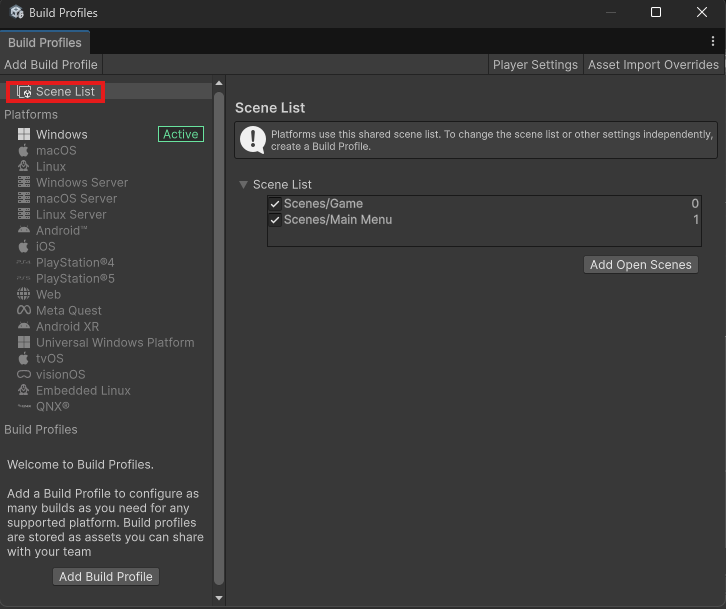
Open your Scene List.
-
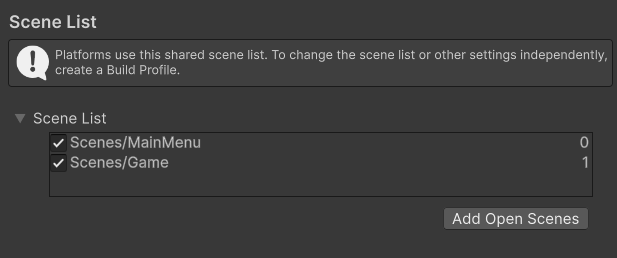
Rearrange your scenes so the Main Menu is at the top.
Warning
We put the Main Menu at the top, because that is the scene Unity opens when the game is run.
Success
-
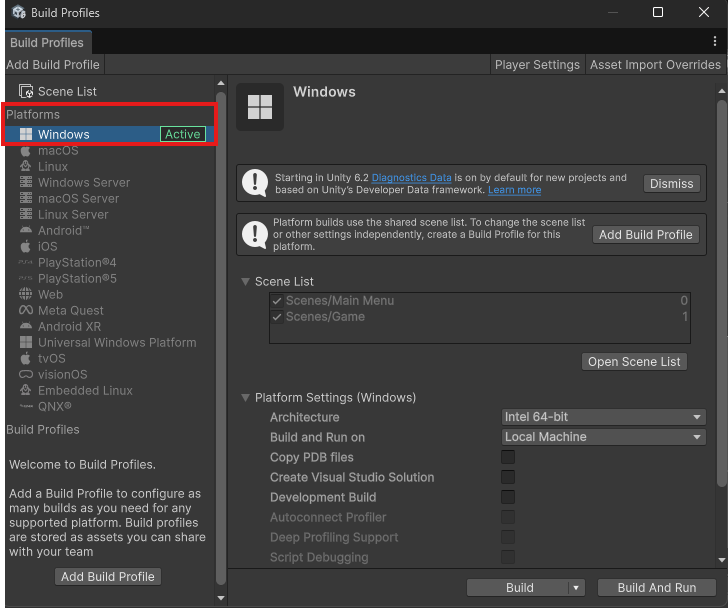
Go to the Windows tab under the Platforms category in the same Build window.
Warning
Windows is the default target platform when building. If for some reason it is not active, change your target platform to Windows.
-
Press Build.
This will open the project's folder in the explorer and ask you for a target location.
-
Create a new folder called "Build".
-
Select your new
Buildfolder as the target location. -
Wait for the build to complete.
My build failed
The most common reason a build fails is one of your scripts has imports that you are not using aside from
SystemandSystem.Collections. Open each script and make sure there are no unused imports at the top of any of them.Proceed when the build is complete.
-
Test your build by double clicking the executable with the same name as your project in the folder.
Success
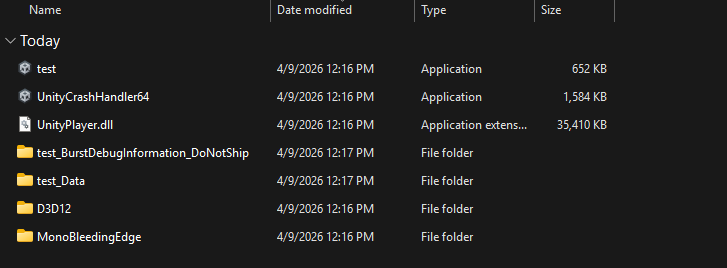
Success
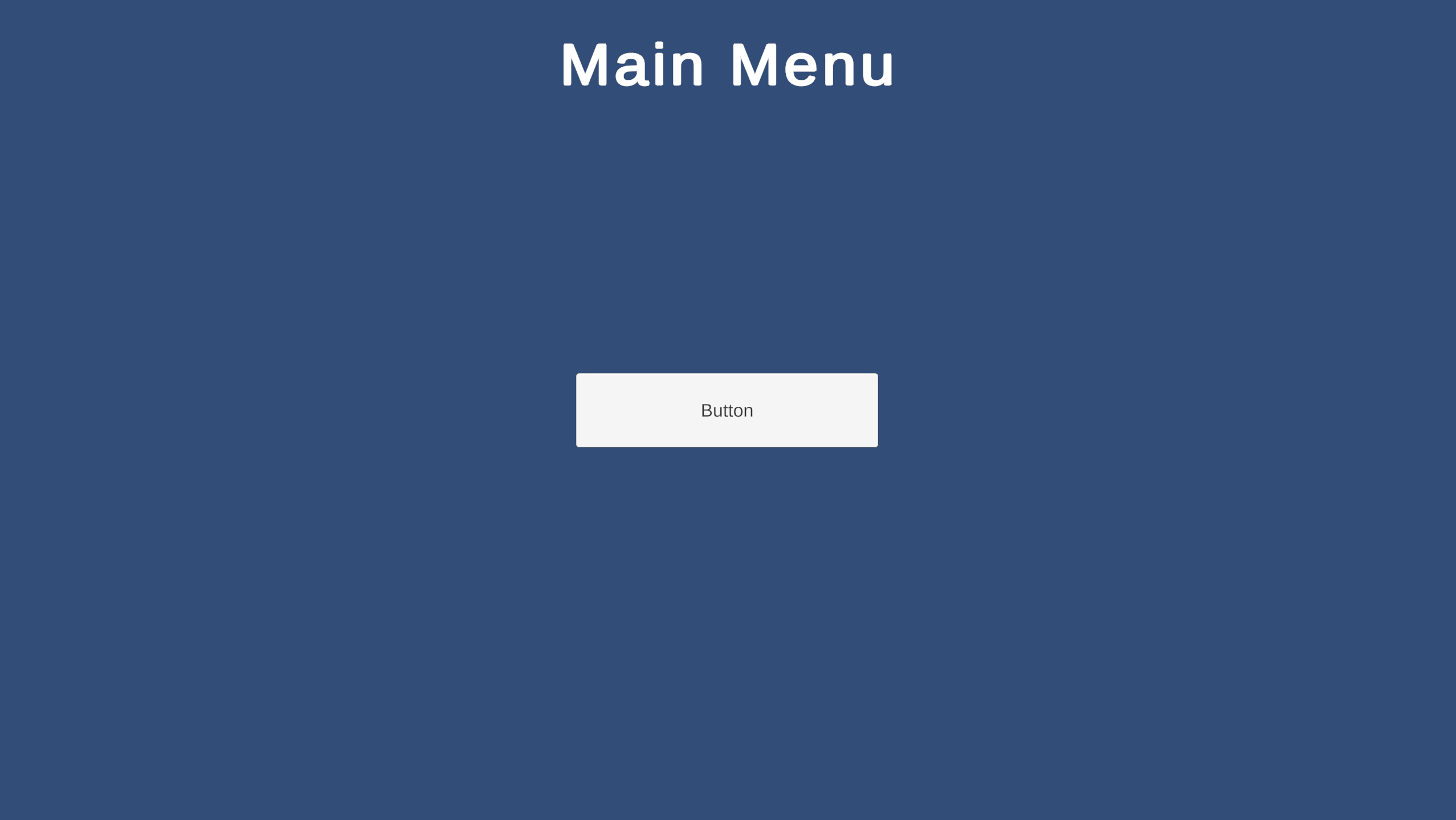
-
Zip your Build into a compressed zip file:
Right click > Compress to > Zip File
You should now have two files: a Build folder, and a Build zip file.
-
Go to itch.io.
-
Press the arrow in the top-right corner, next to your profile picture.
This will show a little dropdown.
-
Select "Upload New Project".
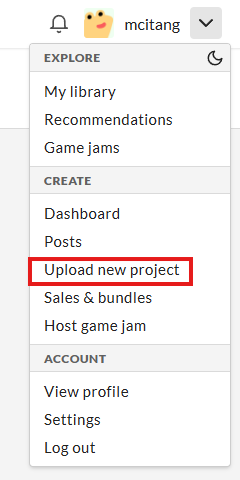
-
Give your game any title you want.
-
Set "Kind of Project" to Downloadable.
About Web Builds
For games meant to be played in browser, you should select HTML instead of Downloadable.
-
Press Upload files and select your build zip folder.
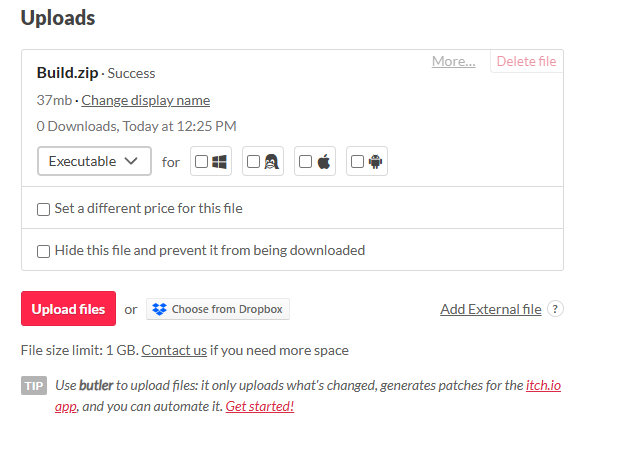
-
Check the box next to the Windows logo so others know the target platform.
-
Scroll down and set your project's visibility.
-
Draft: Only editors can view the page
-
Restricted: Allows users with download keys and/or a password to view the page
-
Public: Anyone can view the page
-
-
Press Save.
And you're done! You can leave every other field blank. Feel free to upload a cover image for the game if you would like. You can share the URL that was generated with whoever you want and they will be able to download from itch.io and play it.
Conclusion
Congratulations on making it through this tutorial! You now know how to build a simple game in Unity with shapes and components, make small scripts for the player to win the game, make menus for the player to navigate through the game, and how to upload the finished game so that others can play it.
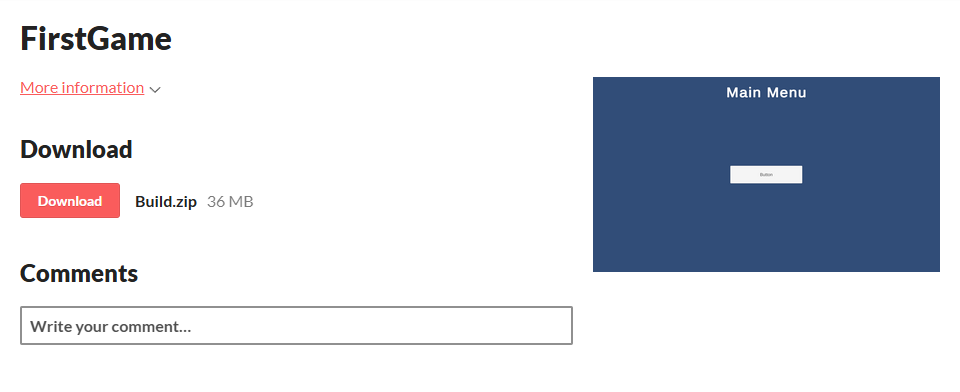
See below for what your page should look like if you copy and paste the URL that itch.io generated for you when you uploading your project:
Success