Navigate The Editor
This section will give a brief overview of a few of the most important elements of the Editor's user interface. The interface is designed as a modular workspace, meaning every window can be docked, moved, or resized to fit your specific workflow.
Hierarchy
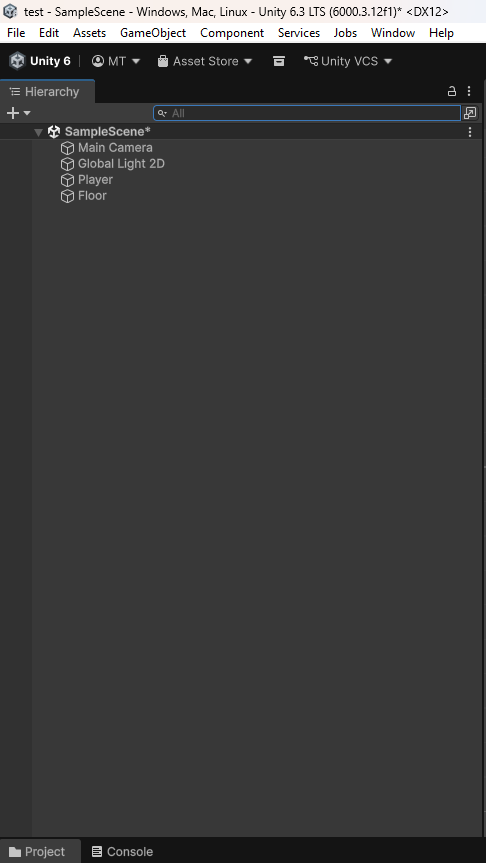
The Hierarchy section on the left of the screen is a dedicated window that displays every GameObject currently present in the active Scene. It allows you to organize your objects and control how they interact with each other.
Inspector
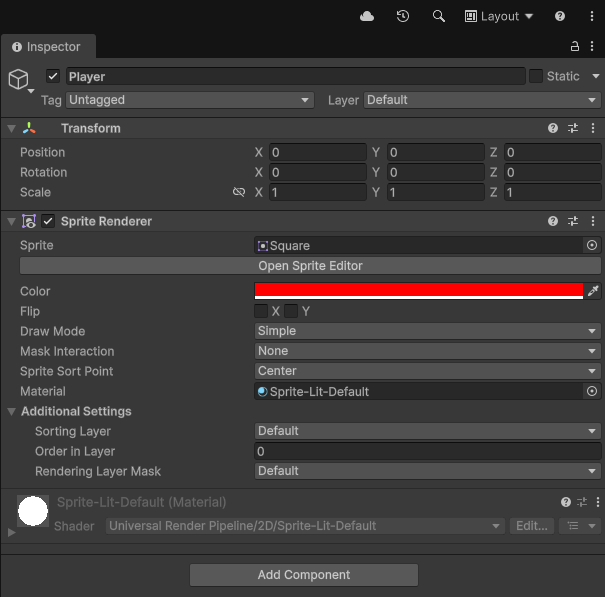
The Inspector section on the right of the screen is a panel that is used to view and edit the properties, components and settings of objects and assets.
Tip
To find an object in your scene quickly, select the object in your hierarchy by pressing left-click, then press F to find it in the Scene View.
Project Files
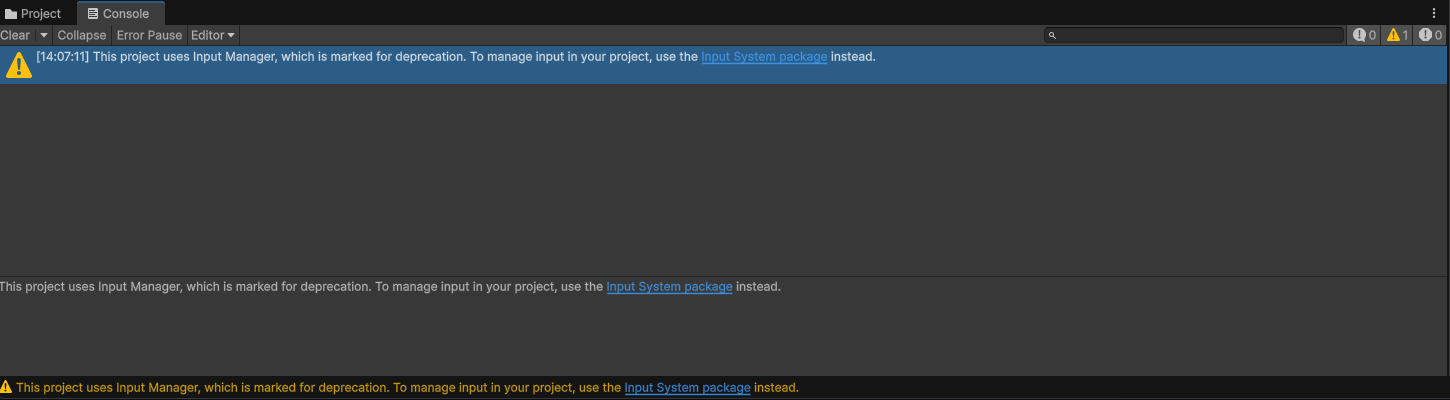
The Project Files at the bottom of the screen is a window that is the central hub for navigating, organizing and managing all files, assets and folders in the game project.

Scene View
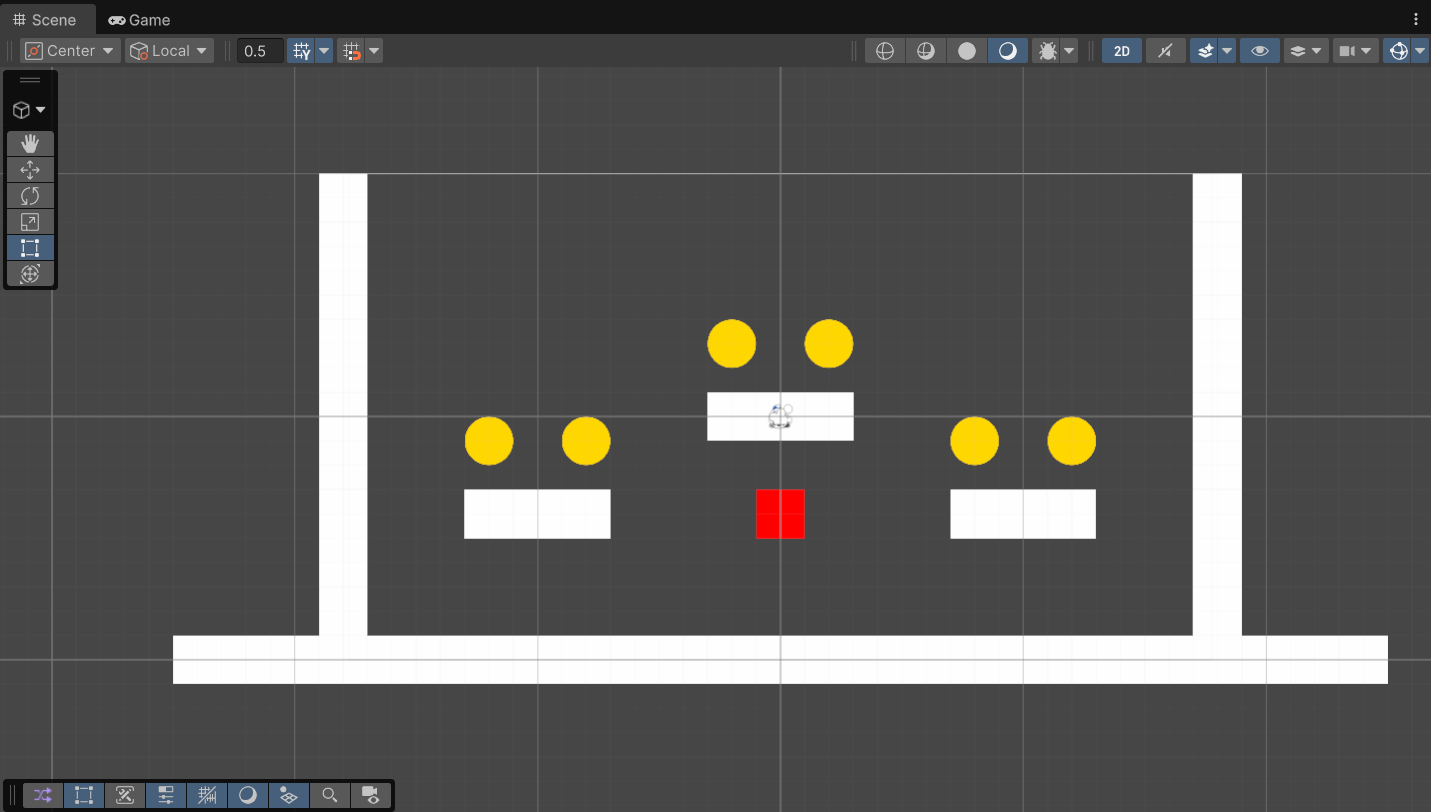
The Scene View at the center of the screen is an interactive sandbox used to help you construct, arrange and edit the game world. This is what the view looks like with objects already added.
You can left-click on objects to select them, and hold right-click and drag to move around the scene.
Game View
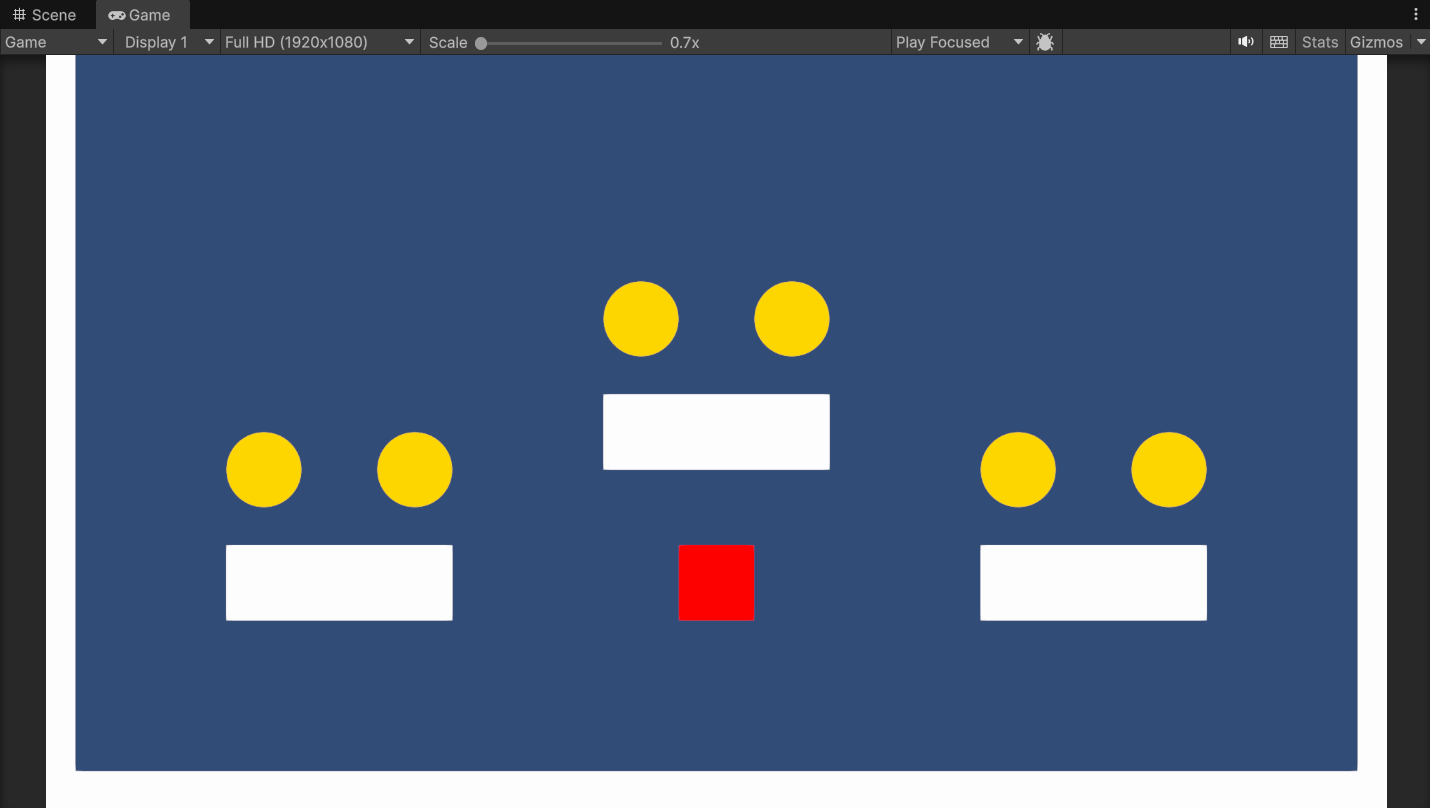
The Game View tab when selected, appears at the center of the screen and is the window that simulates and renders the final output of the project, showing what a player will see when the game is played.
Info
If there are no objects added to the game yet, the game view will show an empty blue screen.
Menu Bar
At the top-left of the Unity Editor is the Menu Bar which gives you access to specific Unity functions under sections such as "File", "Edit", etc.
Console
The Console is at the bottom of the screen is where all errors, warnings and logs are displayed. It shares its space with the Project Files window.